Deploy Screenproof with Mosyle
PKG plus a custom-settings profile. Mosyle is the tenant Screenproof's managed-preferences flow was validated on (2026-07-06), including MDM-delivered allowScreenShot and silent Sparkle updates.
1. Deploy the PKG
- Go to Management → Apps and choose Add PKG (an "Enterprise App" in Mosyle's terms).
- In step "URL of your .PKG file", paste the public download URL:
https://updates.screenproof.app/Screenproof-latest.pkg. No authentication needed.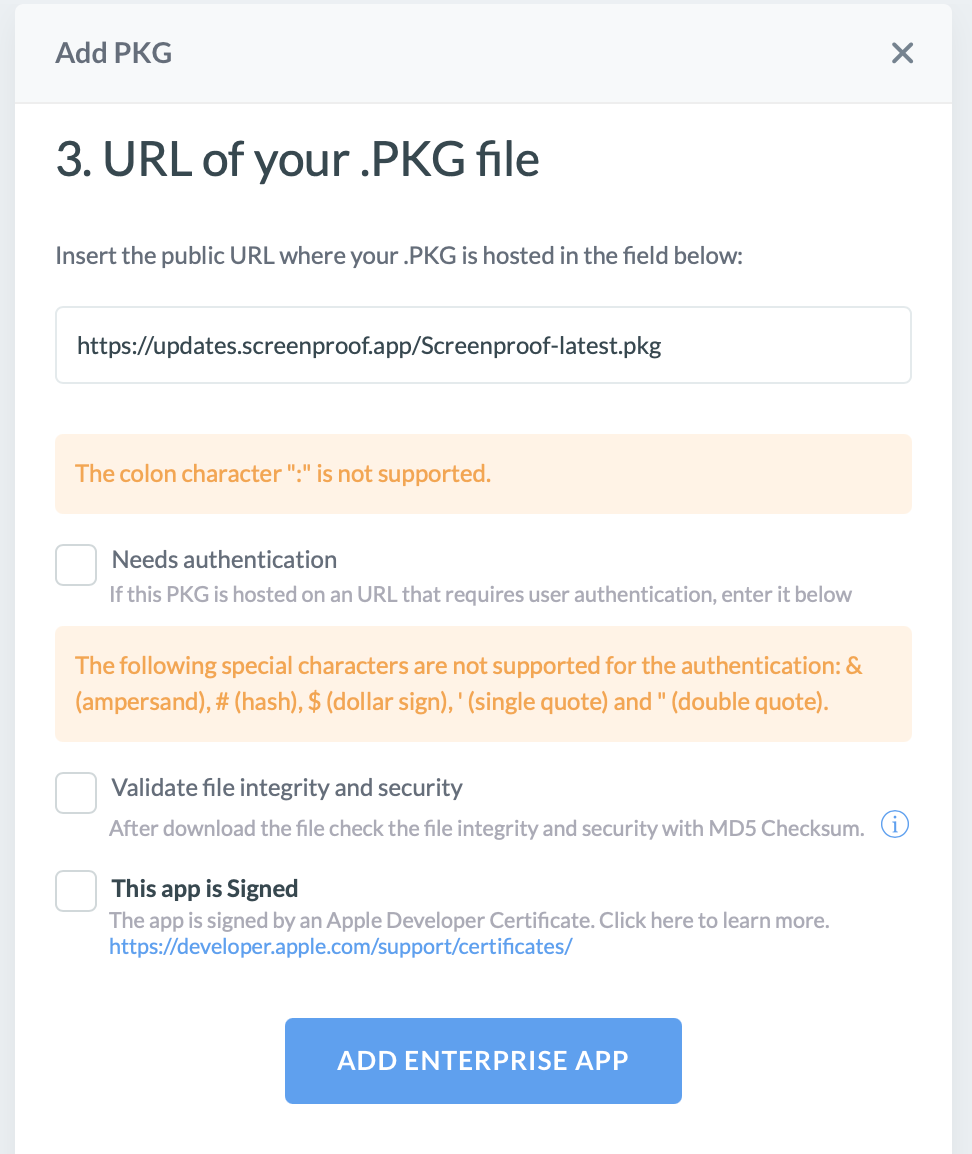
- Check "This app is Signed" — the PKG is signed with an Apple Developer ID Installer certificate. You can leave MD5 file-integrity validation off (the URL is HTTPS and the installer's signature is verified by macOS), or compute a checksum of the downloaded file if your org requires it.
- Click Add Enterprise App, then assign it to the target device group.
The PKG installs /Applications/Screenproof.app and /Library/LaunchAgents/app.screenproof.agent.plist (per-user agent, RunAtLoad — Screenproof starts at each user's next login, not at boot). To verify the installer's signature on a client: pkgutil --check-signature Screenproof-<version>.pkg should show Developer ID Installer, team S65X5KY399.
2. Deploy the managed-preferences profile
- Build your profile: start from
examples/managed-preferences.mobileconfigor the Profile Creator. Every key is optional — force only what your org needs. - Go to Certificates / Custom Profiles and upload the raw
.mobileconfig. Mosyle delivers thecom.apple.ManagedClient.preferencespayload as-is. - Assign to the same device group and save. Deploy after the PKG.
Deploy the optional restrictions and PPPC profiles the same way — raw .mobileconfig uploads under Custom Profiles.
3. Verify on a target Mac
- Open Screenproof → Settings → Managed: the managed banner appears with your org's enforced values.
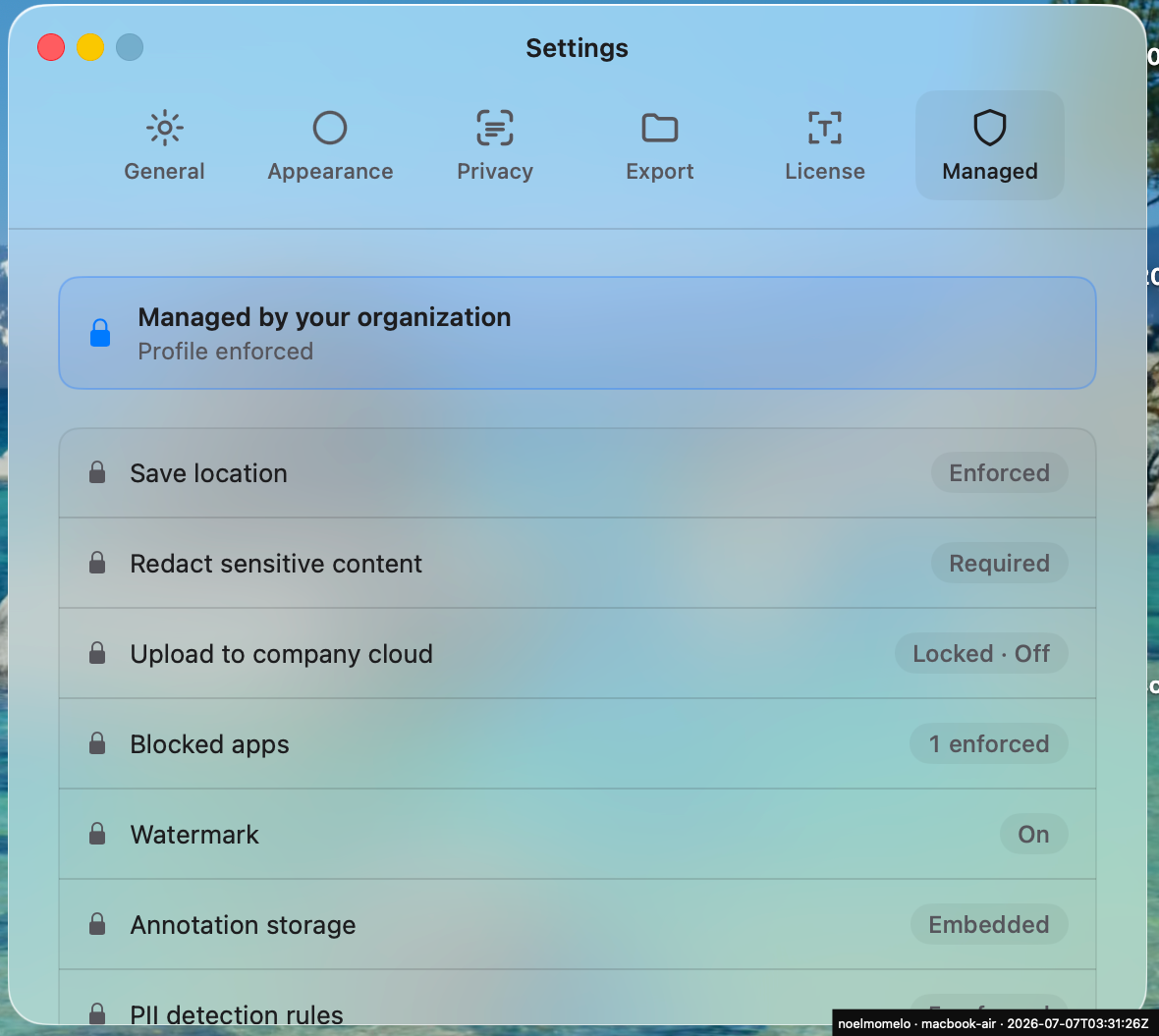
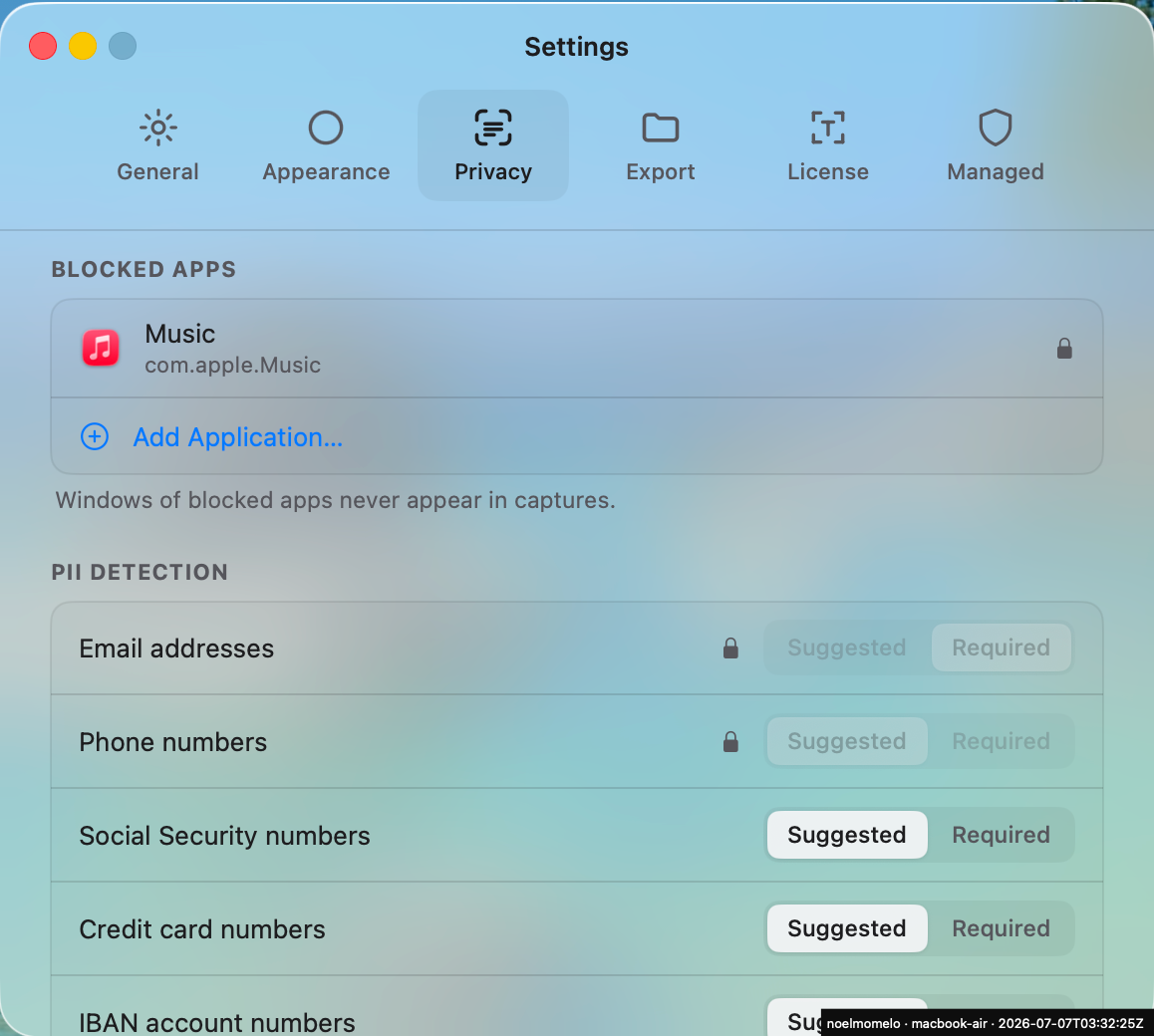
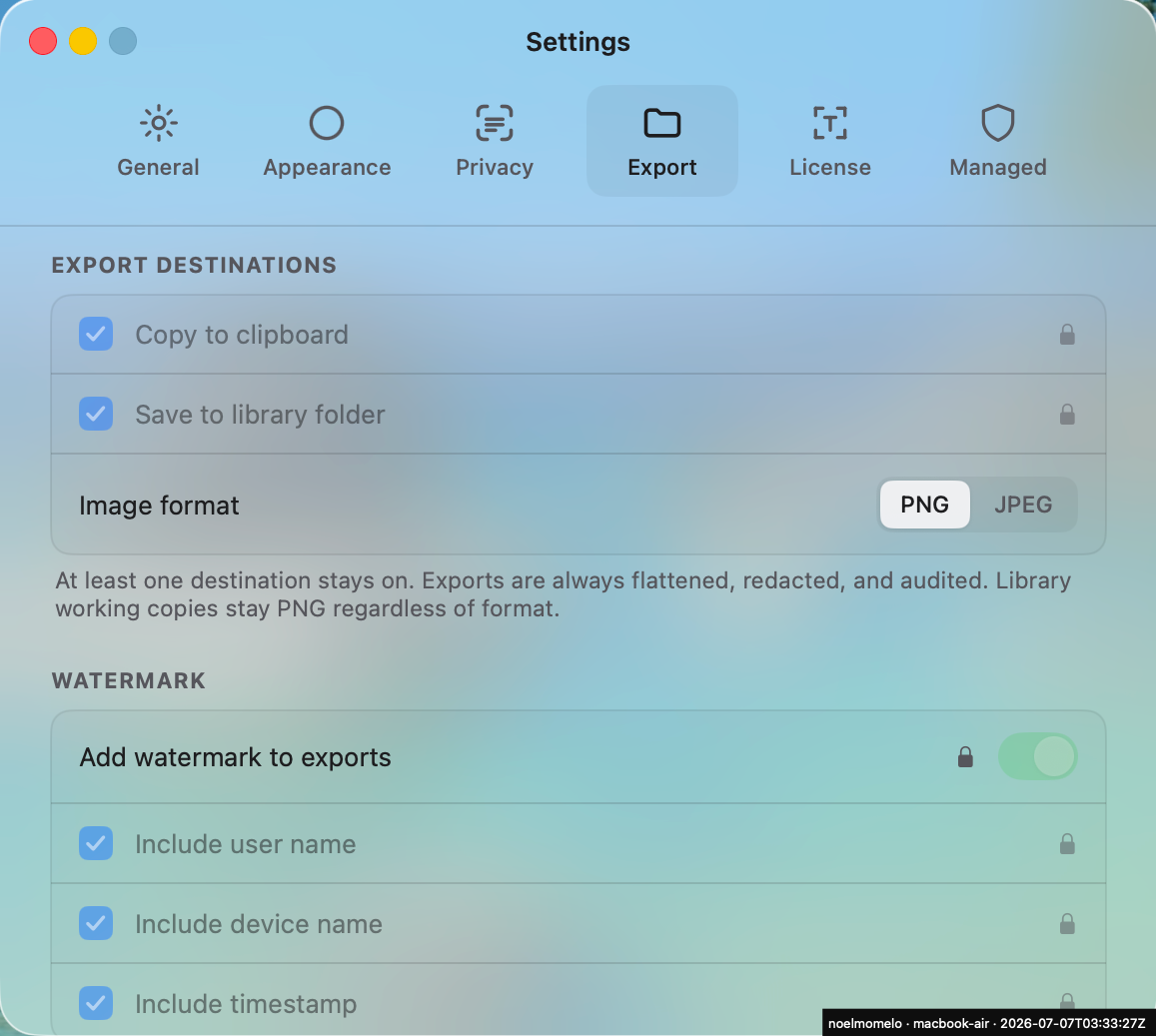
- In the Privacy / Export / License tabs, rows forced by the profile show lock icons and read "Managed by your organization".
- Open Policy Diagnostics: each forced key lists a MANAGED source.
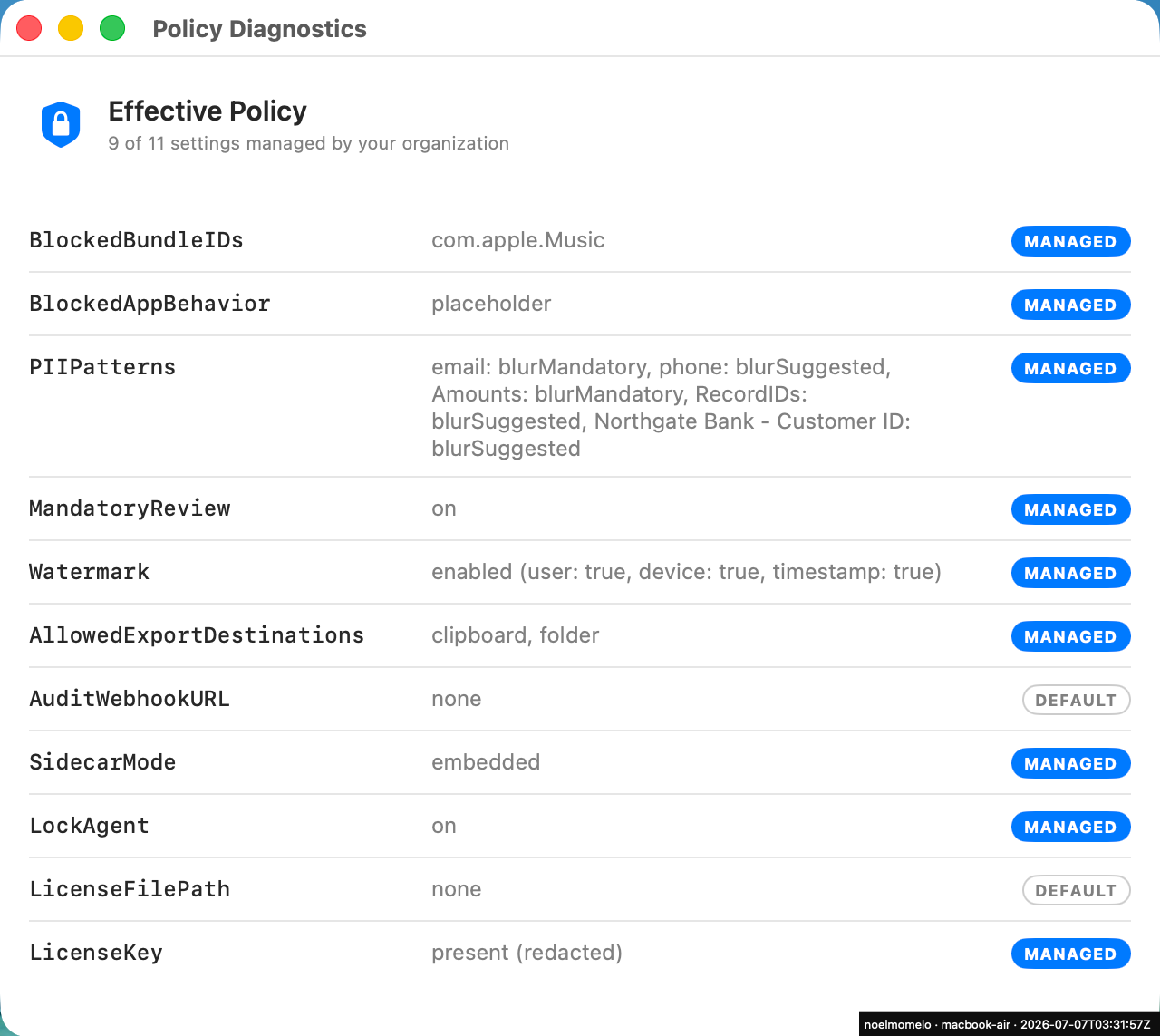
From Terminal, if you prefer:
sudo /usr/libexec/mdmclient QueryInstalledProfiles   # profile present
defaults read /Library/Managed\ Preferences/app.screenproof
Policy changes Screenproof reads managed keys at policy-resolution time — no daemon restart required in principle. Confirm in your trial deploy: change one key, re-push the profile, and check Policy Diagnostics picks up the new value without a relaunch.
Next steps
- Screen Recording permission — the one-time user approval MDM cannot skip, plus native-capture lockdown.
- Fleet licensing — add
LicenseKeyto the same profile. - Updates — silent Sparkle updates via three more keys.